
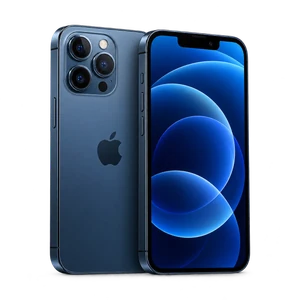
Whether you're selling your iPhone 15, troubleshooting a software issue, or starting fresh — a factory reset erases everything and returns your device to its original state. This covers iPhone 15, iPhone 15 Plus, iPhone 15 Pro, and iPhone 15 Pro Max.
Settings → General → Transfer or Reset iPhone → Erase All Content and Settings
Back up before you reset. This permanently deletes all photos, messages, apps, and settings. There's no undo. Settings → [Your Name] → iCloud → iCloud Backup → Back Up Now
Reset from Settings
The standard method — works when your device is responsive and you know your passcode.
Settings → General → Transfer or Reset iPhone → Erase All Content and Settings
Enter your passcode → account password → confirm
Your device erases and restarts to the setup screen. Takes about 2–5 minutes.
Recovery Mode
Use this if your screen is frozen, the phone won't respond, or you've forgotten your passcode. You'll need a Mac or PC.
Connect to a computer with USB-C
Open Finder (Mac) or Apple Devices (Windows)
On the iPhone: Volume Up (quick) → Volume Down (quick) → hold Side button
Keep holding until the recovery screen shows up
Click Restore on your computer
Reset settings only — keep your data
Settings → General → Transfer or Reset iPhone → Reset → Reset All Settings
Resets Wi-Fi, display, and preferences. Apps and data stay. Worth trying before a full erase.
Force restart — no data loss
Volume Up (quick) → Volume Down (quick) → hold Side button until the Apple logo shows up.
Just a reboot. Nothing is erased. Try this first if it's frozen.
Will a reset fix my problem?
If it's software — slow after an update, apps crashing, random reboots, storage full — a reset will probably fix it. If it's hardware, it won't.
Software — reset helps
Sluggish after an update
Apps crashing or freezing
Random reboots
System data eating storage
Preparing to sell
Hardware — needs repair
Overheating issues
Cracked screen
Battery degradation below 80%
USB-C port bent or loose
Camera lens crack
Quick test: reset, set up as new (skip the backup restore), and see if the problem returns. If it does — it's hardware.
eSIM
US models are eSIM only. International models have a nano-SIM tray. If you erase your eSIM, contact your carrier to reactivate.
Common questions
My iPhone 15 Pro overheats — will a reset fix it?
Apple fixed early overheating in iOS 17.0.3. Update iOS first. If it persists after a reset, it's likely hardware.
Is the process the same for all iPhone 15 models?
Yes. iPhone 15, 15 Plus, 15 Pro, and 15 Pro Max all follow the same steps.
How long does it take?
The erase takes 2–5 minutes. Restoring from a backup adds 10 minutes to over an hour.
Still not working after a reset? It's probably hardware. We do free diagnosis at FIXSTORY — no appointment, no pressure.